
StackUp: your folders, your drives, a backup you can find
A free native backup app for Apple silicon: familiar folders in the Finder, several drives at once, optional schedules and a history you can restore. Now in beta.
01
The problem
One folder on your Desktop matters more than the others. Perhaps it contains this week's work or tomorrow's delivery. You know you should copy it to an external drive. Sometimes you do. Then the folder changes, the copy gets old, and the next time you open the drive you have to remember which version is actually useful.
Adding a second drive should make this easier to trust. Instead, it often means doing everything twice. And when you finally browse the result, the familiar folders disappear behind identifiers and layers of archive directories.
StackUp began with that everyday problem: choose the folders, choose the drives, and understand what happens next. See your files on the destination. Know when the last copy finished. Recover an earlier version without guessing where it went.
StackUp 0.10.0 is a free beta for Apple silicon Macs running macOS 14 or later. It makes local, versioned backups to APFS volumes. It has a dedicated Simple mode, multiple simultaneous destinations, optional schedules and a compact window that stays out of your way. It is still a beta: keep another established backup while you evaluate it, and test a restore with your own kinds of files.
02
Why it happens on macOS
A useful backup has to answer more than “did something get copied?” It has to distinguish a completed version from a job that stopped halfway. It has to keep yesterday's work when today's source contains a mistake. It has to cope with one drive being disconnected while another is available. And it has to be clear about when it is allowed to run.
New plans start manually. Selecting a plan or browsing the interface does not launch a backup. A schedule is a choice you make explicitly, and stopping a destination pauses its automatic runs until you resume them.
The storage design uses APFS, the filesystem already at home on modern Macs. Unchanged files can be cloned within the destination volume: APFS shares their underlying storage until a copy changes, while each version remains an independent file tree. That helps avoid repeatedly writing identical content. StackUp reads file contents for verification, and a changed file is copied in full.
We also wanted the drive itself to remain understandable. The default Simple copy format gives you a normal folder in the Finder, while StackUp keeps the information needed for history separately. The interface distinguishes an incomplete run from an older completed version.
03
My approach
Start with your folders and your drives
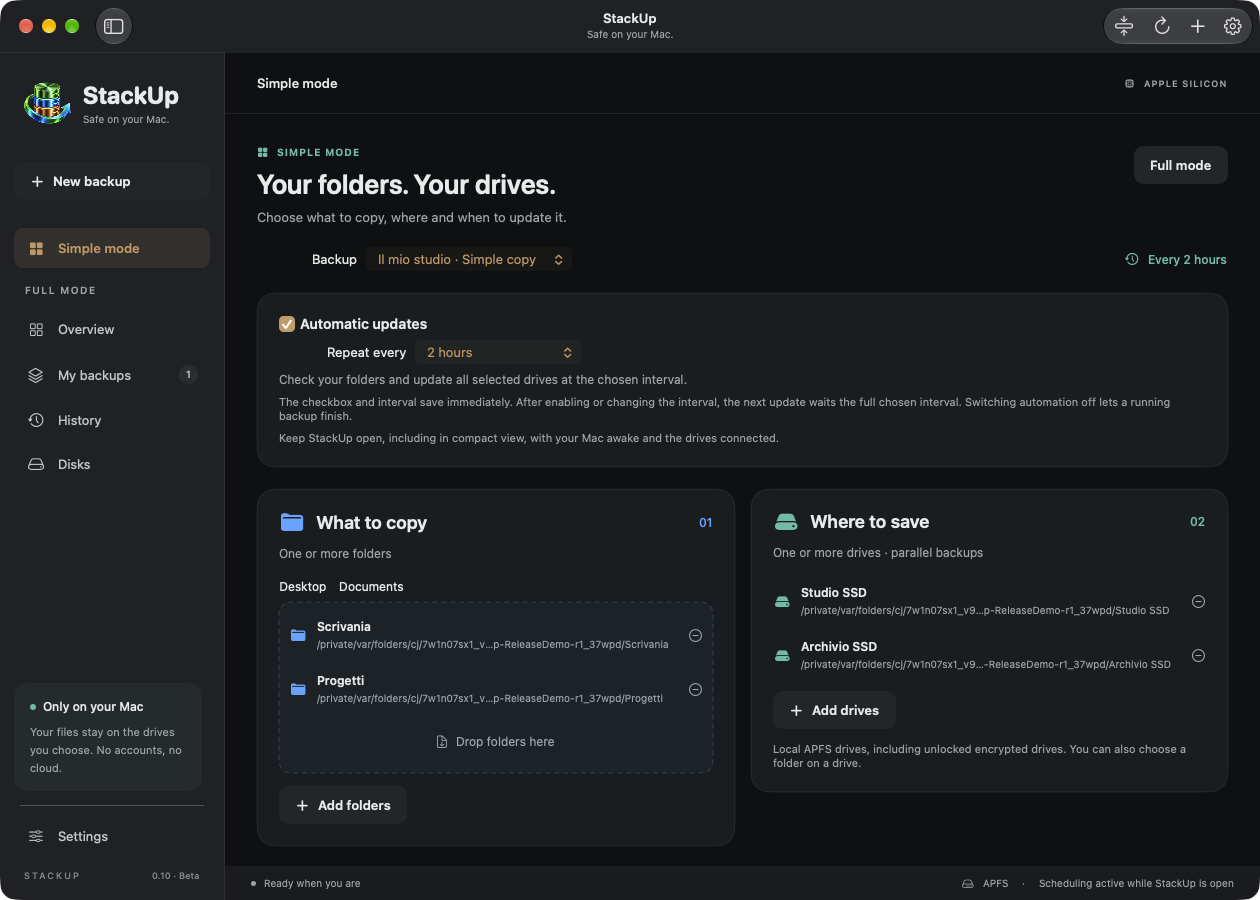
Open Simple mode in the sidebar. Add folders through the chooser or drag them into the source area; Desktop and Documents have their own shortcuts. Select one or several destination drives, name the backup and press Start backup. That button saves the plan and starts its destinations together.
It can protect several source folders in one plan and write to several drives. The full interface adds exclusions, retention settings and advanced options when you need them.
The real app, using generated demonstration files: sources, destinations and timing in one place.
A copy you can recognise in the Finder
Choose Simple copy for a regular folder on the destination. With one source, its files appear directly inside that folder. With several sources, their original folder names remain visible. Files appear progressively as they are copied and verified; you do not have to wait for the entire job to see them.
During a run, that visible folder is incomplete. An interruption leaves the files already delivered there, while earlier completed versions remain available in History. Editing the visible copy does not edit those older versions, but your edits to the visible copy will be replaced by the next backup. This is one-way backup, not two-way synchronisation.
The alternative Structured archive format exposes the versioned archive layout and can provide a shortcut to the latest version. Both formats retain history. Simple copy stores its management data in a hidden .StackUp Backups directory; hiding it makes browsing easier, not smaller or immune to deletion.
Choose how often, or keep it manual
Enable Automatic updates in Simple mode and choose Repeat every. Presets range from 5, 15, 30 or 60 minutes to 2, 5, 10 or 24 hours, then 5, 10 or 30 days. Twenty-four hours is also one day.
The first run copies the selected contents. Later runs reuse unchanged files and copy new or modified files. After a successful backup, that destination's next run is based on the chosen interval. Enabling a schedule or changing its frequency waits a full interval; it does not unexpectedly launch a copy at that moment. Saved plans keep the scheduling choice immediately. New plans save it when you start their first backup.
Turn the checkbox off to prevent future automatic runs; a copy already running can finish. Stop also pauses automation for that destination until you explicitly resume it. An occasional manual run does not silently remove that pause.
Several drives, independent progress
Each destination runs independently and keeps its own versions, status and last successful backup. An unavailable drive does not stop the other destinations. Two folders on one physical volume are allowed, but the interface points out that they are not independent drives.
Parallel copies share the Mac's source storage and connection bandwidth. StackUp does not promise that two drives will finish twice as quickly, or capture exactly the same instant if you keep editing the sources.
History that leads back to a file
In History, choose the plan and destination, then browse a completed version. Search for a file, inspect a supported text preview, restore a selection or recover the whole version into a new folder. Restore verifies the selected file contents and does not overwrite your original working files. You can also check a complete version’s integrity.
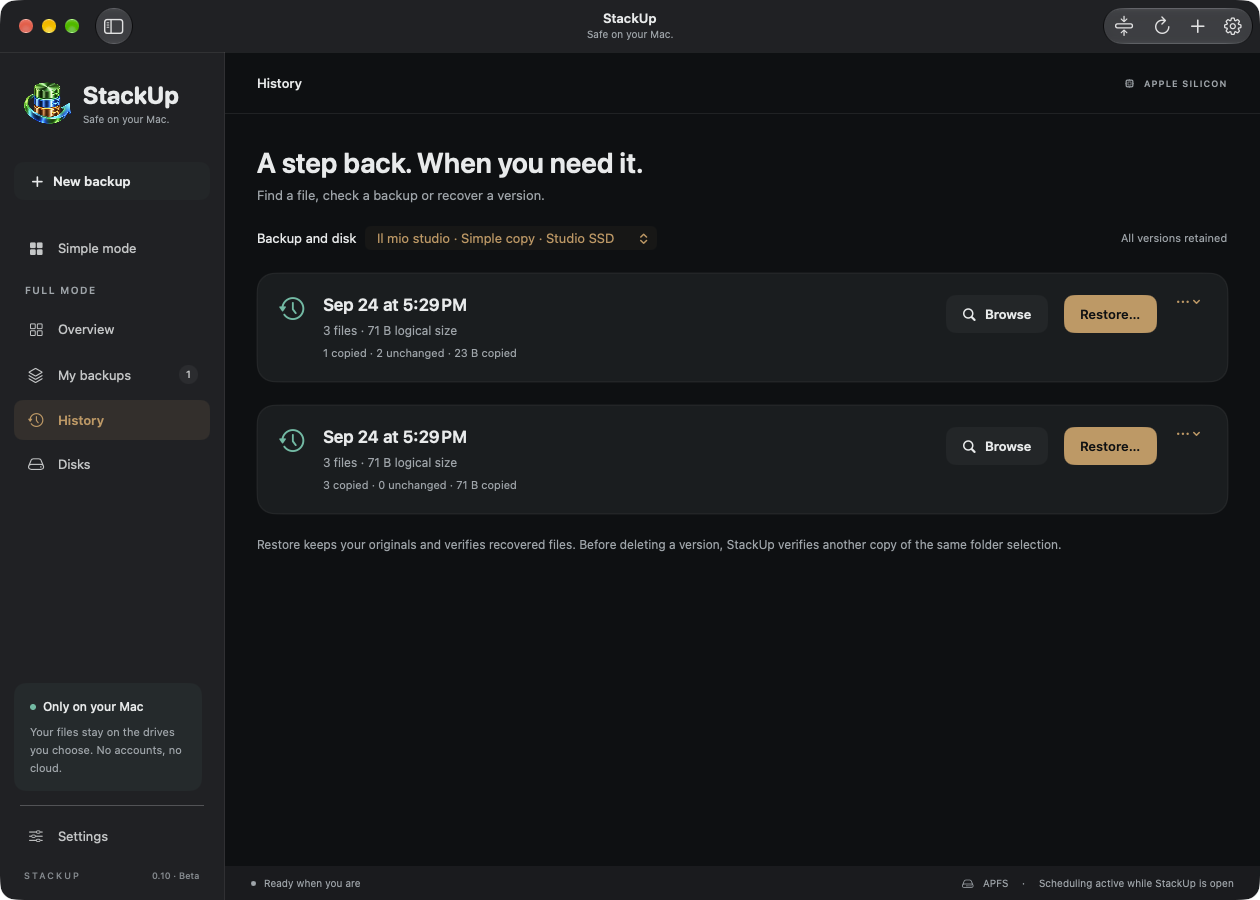
Recovery starts with a particular version on a particular destination.
Deleting a source file removes it from the next current copy, but retained older versions can still contain it. Retention is configured in the full editor; the initial setting keeps every version, so history needs disk space. These are writable files, not immutable snapshots or a ransomware barrier.
Keep working while the backup runs
The dark interface uses blue for sources and green for destinations, with moving pages to make transfer activity visible. The animation indicates activity rather than pretending to be a precise time estimate, and respects Reduce Motion.
The top bar's Compact view button turns the main window into a small movable strip. Drag it where it suits your workspace, follow progress and expand it with a click. Reducing the window keeps your chosen schedules active.

The compact strip leaves room for your work while keeping the backup visible.
For automatic runs, leave the app open and the Mac awake with the drives connected. An optional background service in Settings can continue scheduling after you quit the app and starts at login. It is an explicit choice. StackUp does not wake a sleeping Mac or back up while it is switched off.
Updates that tell you before changing anything
StackUp checks for new releases at launch and every six hours while the app is open. You can disable those checks or request one manually. Release notices are authenticated with an Ed25519 signature before the app offers their download link. A new version appears in the app with its release notes.
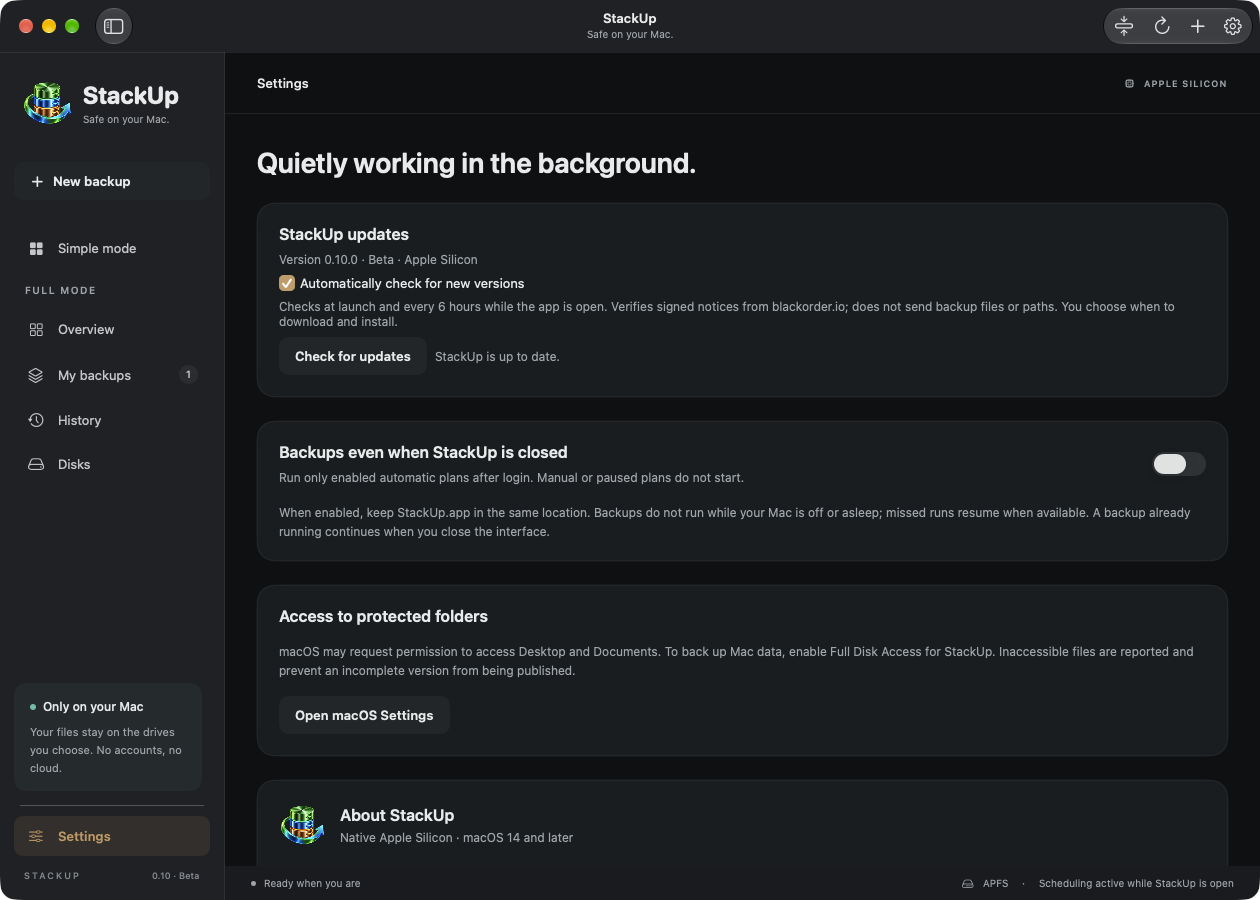
App updates have their own controls, separate from backup schedules.
You choose when to download the DMG and install it. Nothing silently replaces the application during a backup. Wait for active copies to finish and quit StackUp before replacing it. Update requests do not send backup files or their paths; local backup work stays on your Mac and destination drives.
A focused beta, with its boundaries in view
StackUp supports local APFS destinations, including encrypted volumes that macOS has already unlocked. Disk formatting, encryption and passwords stay with macOS; StackUp does not manage them. There is no account, subscription or telemetry. The interface follows the Mac's primary language: Italian when that language is Italian, English otherwise.
This release does not provide NAS or cloud backup, a bootable clone or a validated whole-system recovery. The experimental Entire Mac option selects broad data locations; it is not an image of the internal SSD. Open databases and virtual machines do not have an application-consistency guarantee, and cloud-only files must be locally readable before copying.
Start with a small, representative folder. Complete a backup, change a file, run it again and restore an earlier version into a separate folder. That is the useful first test: seeing the work come back.
StackUp is developed by an Italian crew from Portomaggiore. We are releasing it free, with a clear scope and room to improve through real use. Your folders, your drives, and a backup you can actually find.
Download StackUp 0.10.0 beta for macOS
macOS 14 Sonoma or later · Apple silicon · Local APFS destinations
Download for macOSMore from the codex
Discussion 0 comments
No comments yet. Start the conversation.